
Promoters
Create and publish an event
Event details, dates, flyer and going on sale.
1Start a new event
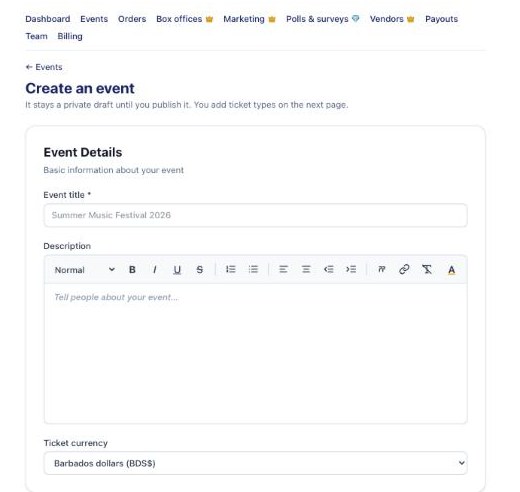
Go to Events and press New event. Enter the title, description, currency (BDS$, or US$ which also allows PayPal), venue, and when it starts and ends. Upload your flyer (best at 1080 × 1350, Instagram post size): it appears on the event page, on tickets and in your emails. Press Create draft event. It stays private until you publish.
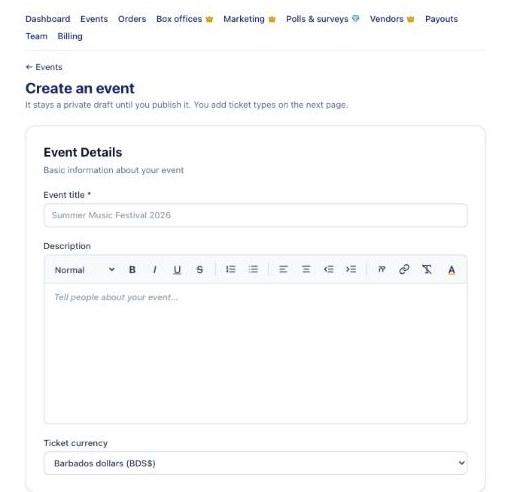
Create an event 2Add more dates (multi-day events)
For an all-night fete, end it the next morning. For a festival over several days, add the other days under Event dates on the event's Overview; each ticket type can be valid for one, some or all of them.
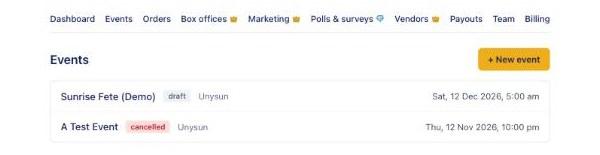
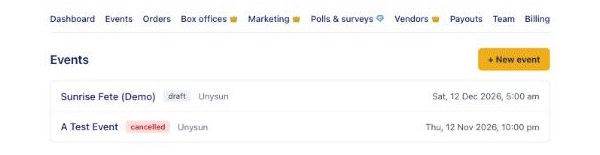
Your events list, with drafts and their dates 3Add ticket types
After creating the event you land on its Overview. Under Ticket types, press Add a ticket type (for example Early Bird, General, VIP) with a price and quantity. See Ticket types and sales periods for the details.
4Publish
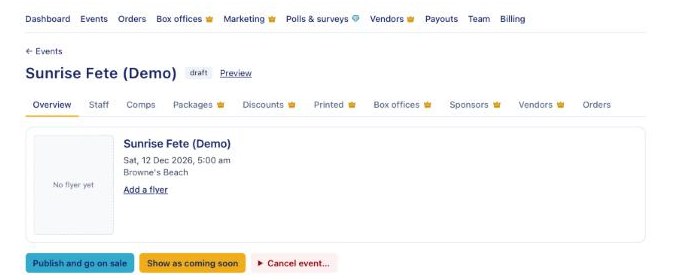
On the event's Overview, press Publish and go on sale, or Show as coming soon to show the event without selling yet. You can Pause sales at any time; the page stays up for ticket holders. Once tickets are sold an event can be paused or cancelled but not unpublished.
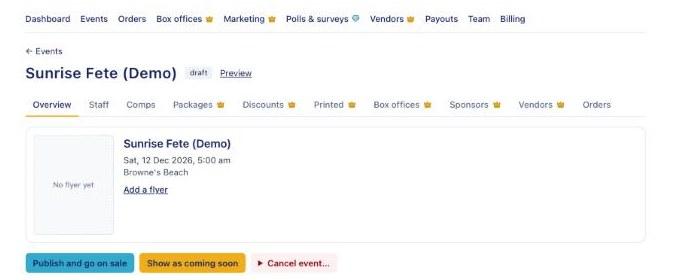
An event's Overview with its status buttons and menu
Questions
›How do I cancel an event?
On the event's Overview, open Cancel event…, tick the box and confirm. Sales stop, tickets stop working at the gate and every card and PayPal order is refunded automatically, fees included. Cash sales you refund yourself.
›Can I delete an event?
A cancelled event can be deleted once its card and PayPal refunds have gone through: open Delete event… on its Overview. It disappears from your events, dashboard and reports. BajanTix keeps the records, and people who had tickets can still see that it was cancelled.